
Google Analytics 4 (GA4) has become one of the most essential tools for understanding customer behavior, improving marketing strategies, and making data-driven decisions. With Universal Analytics officially retired, GA4 is now the default analytics platform for all websites and mobile apps.
For businesses in 2025, GA4 is more powerful than ever, offering advanced features like AI-driven insights, multi-device tracking, privacy-focused measurement, and predictive analytics. This step-by-step guide will help businesses set up, understand, and optimize Google Analytics 4 effectively.
What Makes GA4 Different in 2025?
GA4 introduces a completely new analytics model compared to Universal Analytics. Here’s what makes it better:
1. Event-Based Tracking
Instead of sessions and page views, GA4 tracks everything as events, giving deeper behavioral data.
2. AI-Powered Insights
AI automatically identifies trends, predicts customer actions, and detects anomalies.
Official GA4 features list:
https://support.google.com/analytics/answer/10089681
3. Cross-Device Measurement
GA4 unifies tracking across website + app for a complete user journey.
4. Better Privacy Controls
GA4 is built for privacy laws such as GDPR and CCPA, with cookieless measurement enhancements.
5. Predictive Analytics
GA4 can predict purchase probability, churn, and revenue — ideal for marketing teams.
More: https://support.google.com/analytics/answer/9846734

Step 1: Create a Google Analytics Account
If your business doesn’t already have a GA4 account:
- Visit the official site: https://analytics.google.com
- Click Start Measuring
- Create an Account Name
- Select your data-sharing preferences
- Click Next
This creates the foundation for storing your analytics data.
ALSO CHECK: Top Web Hosting Companies for US Websites (2025 Guide)
Step 2: Create a GA4 Property for Your Business
GA4 properties are where your website and app data will be stored.
- Enter your Property Name (ex: “My Business GA4 Property”).
- Select time zone + currency (important for revenue tracking).
- Click Next and choose your business size and industry.
- Click Create.
GA4 will now generate a fresh property ready for setup.
Step 3: Add Your Website Data Stream
In GA4, “Data Streams” are separate sources like web, iOS, and Android.
To add a website:
- Go to Admin → Data Streams
- Select Web
- Enter website URL
- Add a stream name (ex: “Main Website”)
- Click Create Stream
GA4 will give you a Measurement ID, which looks like:
G-XXXXXXXXXX
Step 4: Install GA4 Tag on Your Website
You must install the GA4 tracking tag on your site to start receiving data.
Option A: Using Google Tag Manager (Recommended)
- Visit https://tagmanager.google.com
- Open your website container
- Click Add New Tag
- Select GA4 Configuration Tag
- Enter your Measurement ID
- Trigger on All Pages
- Click Submit
Step 5: Enable Enhanced Measurement
GA4 automatically tracks:
- Scrolls
- Outbound clicks
- Video engagement
- File downloads
- Form interactions
To enable:
- Go to Data Streams
- Select your website stream
- Turn on Enhanced Measurement
This gives powerful behavioral insights without coding.
Step 6: Set Up Conversion Tracking
Conversions help you track your business goals. Examples:
- Purchases
- Form submissions
- Newsletter sign-ups
- Add-to-cart buttons
- Phone clicks
GA4 automatically tracks key events like purchase, first_visit, session_start, etc.
To mark an event as a conversion:
- Go to Admin → Events
- Toggle the switch next to the event name
- GA4 will now show conversions in reports
Official event list:
https://support.google.com/analytics/answer/9234069
Step 7: Connect GA4 With Google Ads
For businesses running ads, linking Ads and GA4 improves ROAS (Return on Ad Spend).
Steps:
- Go to Admin → Product Links → Google Ads
- Choose your Ads account
- Click Link
- Enable personalized advertising
- Import conversions from GA4 to Google Ads
This helps ads optimize using GA4’s predictive insights.
Step 8: Use Audience Builder
GA4’s audience builder helps target high-value users.
Example audiences:
- Users likely to purchase (using predictive metrics)
- Returning visitors
- Users who abandoned checkout
- Engaged readers
You can find it under:
Admin → Audiences → New Audience
GA4 also includes predictive audience options:
https://support.google.com/analytics/answer/9846734
Step 9: Understand GA4 Reports in 2025
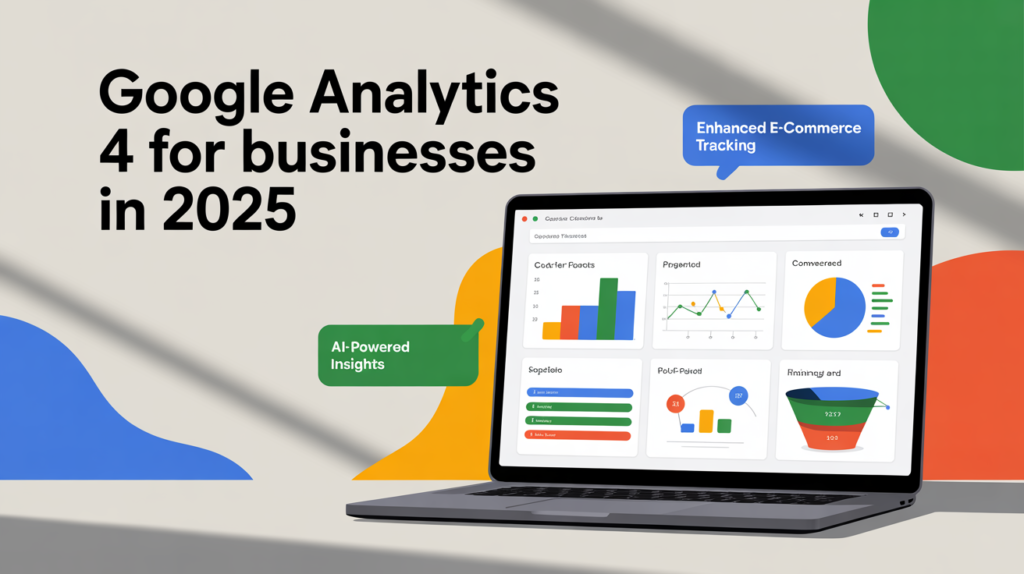
The GA4 interface is designed around user behavior, engagement, and retention.
Important Reports:
1. Realtime Report
Shows current active users, pages they’re viewing, and live events.
2. Acquisition Report
Tracks where users come from:
- Organic search
- Paid ads
- Social
- Direct
- Referral
3. Engagement Report
Shows what users do on your site:
- Views
- Events
- Average engagement time
- Scrolls
- Conversions
4. Monetization Report
Essential for eCommerce:
- Purchases
- Revenue
- Items sold
5. Retention Report
Shows how well your site retains customers — critical for subscription models.
Official GA4 reporting guide:
https://support.google.com/analytics/answer/12998367
Step 10: Customize Reports for Your Business
Every business needs personalized insights.
In GA4, you can create custom reports using Explore.
Popular custom explorations:
- Funnel exploration (checkout behavior)
- Path exploration (user journeys)
- Segment overlap
- Cohort analysis
These tools help businesses make informed decisions using real behavioral data.
Step 11: Add GA4 to Google Search Console
Search Console + GA4 = powerful SEO insights.
Steps:
- Go to Search Console → Settings
- Click Associations
- Add your GA4 property
Official Search Console:
https://search.google.com/search-console/about
This integration helps track:
- Top keywords
- CTR
- Indexing issues
- Landing page performance
Step 12: Use Predictive Metrics for Business Growth (2025 Feature)
GA4 predictive metrics help businesses understand likely customer behavior:
- Purchase probability
- Churn probability
- Revenue prediction
These insights help:
- Improve retargeting campaigns
- Reduce churn
- Identify high-value users
Final Thoughts
Google Analytics 4 is no longer just a tracking tool — it’s a complete business intelligence platform. In 2025, GA4’s powerful AI features, privacy-first design, and event-based tracking help businesses get more accurate insights than ever before.
By following the steps in this guide, your business can:
- Understand user behavior
- Optimize marketing campaigns
- Improve conversions
- Boost ROI
- Make smarter decisions using real data
Whether you’re a small business owner or a marketing professional, mastering GA4 is essential for staying competitive in today’s digital world.
Google Analytics 4
The first riddle puzzled him: “I speak without a mouth and hear without tears. I have no body, but I come alive with the wind. Brightened my day!!
After thinking deeply, he replied, “An vibes of wave”
The second riddle was equally challenging: “The more of this there is, the less you see. What is it?”
“Brightness” Leo answered confidently.
The final riddle made his heart race: “I can fly without wings. I can cry without eyes. Lovely Indeed!
Your point of view caught my eye and was very interesting. Thanks. I have a question for you.
Thanks for sharing. I read many of your blog posts, cool, your blog is very good.
Thanks for sharing. I read many of your blog posts, cool, your blog is very good.
Your point of view caught my eye and was very interesting. Thanks. I have a question for you.
Can you be more specific about the content of your article? After reading it, I still have some doubts. Hope you can help me.
Thanks for sharing. I read many of your blog posts, cool, your blog is very good.
Can you be more specific about the content of your article? After reading it, I still have some doubts. Hope you can help me.
I don’t think the title of your article matches the content lol. Just kidding, mainly because I had some doubts after reading the article.
Thanks for sharing. I read many of your blog posts, cool, your blog is very good.
Thank you for your sharing. I am worried that I lack creative ideas. It is your article that makes me full of hope. Thank you. But, I have a question, can you help me?